Environment History
- Copy Page Tree
- Jay-Ar Brouillard
- Ben Hoffman
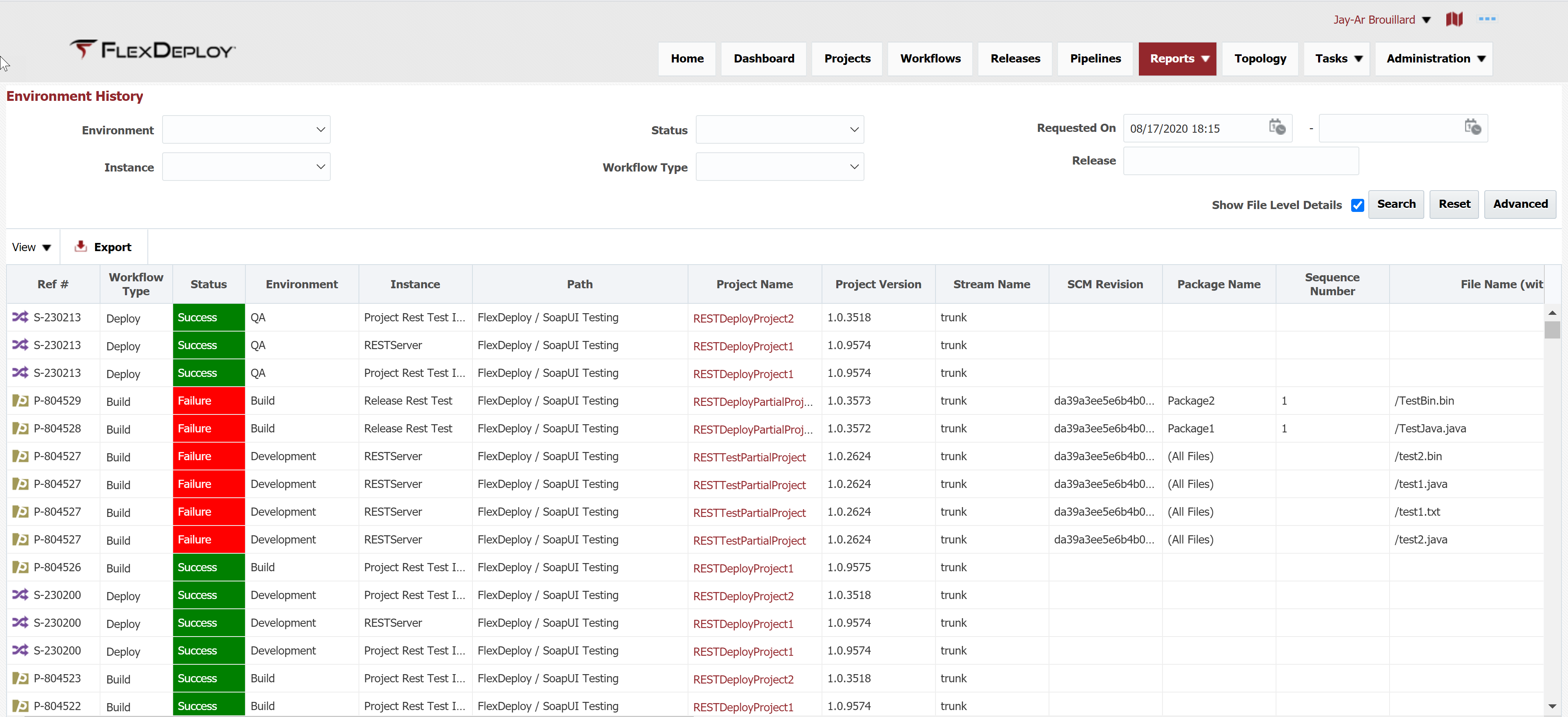
The Environment History report provides visibility into the history of all activities across the topology of environments and instances. This report is helpful in determining what may have happened with a given project that might be having issues. To filter the report, use Basic or Advanced mode. You can view activities at individual file or project/package level, use Show File Level Details checkbox.
Report will initialize to Basic mode with activity details from past 3 months without file level details.
Result table details
Path is
- Fully qualified application name
Ref #
- S - for pipeline stage execution and stage execution id
- P - for project request and workflow request id
- A - for application request and folder request id
Release and Snapshot
- Only present if deployment was done using Release
Change Ticket
- Only present if Change Management System integration is used for deployments and change ticket is used for deployments.
Issue Number
- Only present if Issue Tracking System integration is used and build captured issue numbers.
File level details
- File level details for partial deployment project is only shown if Show File Level Details is checked, otherwise package level activities are displayed.
Sequence Number
- References the execution order of the file in the given package. Only shown if Show File Level Details is checked. For all files partial deployment, sequence number will be empty.
Basic Search
| Search Field | Search Operator | Notes |
|---|---|---|
| Environment | Equals | Configured Active Environments |
| Instance | Equals | Configured Active Instances |
| Status | Equals | Aborted, Failure, Queued, Running, Scheduled, Success |
| Workflow Type | Equals | Build, Deploy, Utility, Test, Other, Test Definition |
| Requested On | After, Before or Between | Task requested time Depending on whether first, second or both values are provided respectively |
| Release | Contains Ignore Case | Release name, suggestions are provided as you type You can use partial or full Release name. |
Advanced Search
| Search Field | Search Operator | Notes |
|---|---|---|
| Environment | Equals | Configured Active Environments |
| Instance | Equals | Configured Active Instances |
| Status | Equals | Aborted, Failure, Queued, Running, Scheduled, Success |
| Workflow Type | Equals | Build, Deploy, Utility, Test, Other, Test Definition |
| Requested On | After, Before or Between | Task requested time Depending on whether first, second or both values are provided respectively |
| Release | Contains Ignore Case | Release name, suggestions are provided as you type You can use partial or full Release name. |
| Ref # | Equals | Search for Project, Application or Pipeline Stage Execution id |
| Project Name | Contains Ignore Case | Project Name |
| Start Time | After, Before or Between | Execution start time Depending on whether first, second or both values are provided respectively |
| End Time | After, Before or Between | Execution end time Depending on whether first, second or both values are provided respectively |
| Package Name | Equals | Package name, only applicable for partial deployment projects |
| Requested By | Equals | exact user name of person that requested execution |
| SCM Revision | Equals | Revision associated with project version or specific file (if showing file level details) |
| Change Ticket | Equals | Change ticket associated with deploy or utility execution |
| Issue Number | Equals | Issue numbers associated with project version |
| Build Request Flexfields | Equals | Depends on configured active and visible Build Request Flexfields Only applies to project and application executions |
| Deploy Request Flexfields | Equals | Depends on configured active and visible Deploy Request Flexfields Only applies to project and application executions |
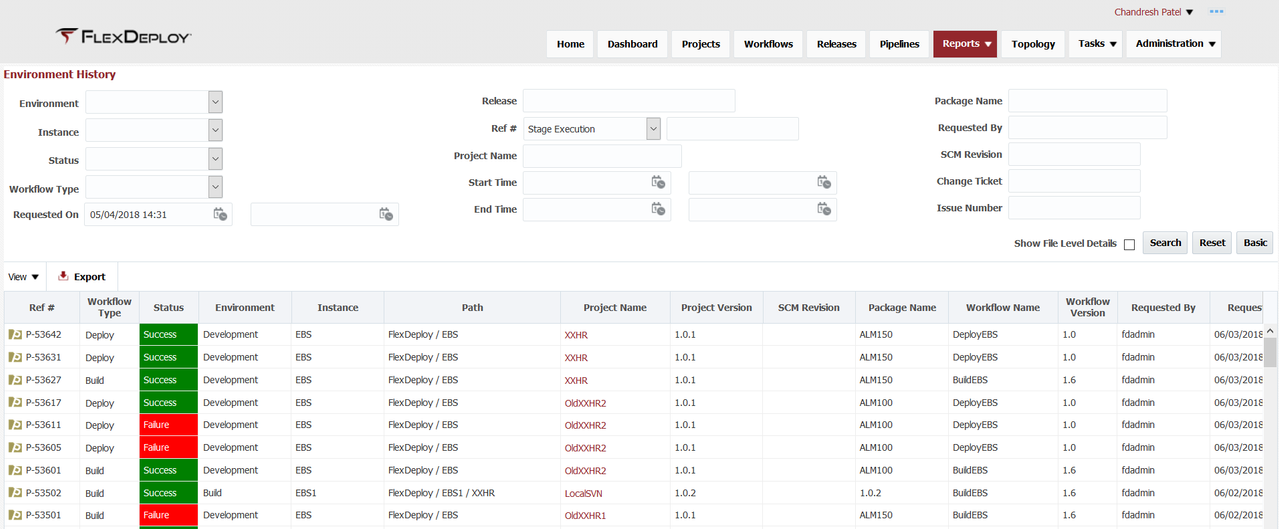
The reference number (Ref #) in the first column can be used to correlate data across reports. It refers to the project, application, or stage execution identification number.
- style